Every programmer, no matter how experienced, has lost work to a bad edit or a deleted file. Version control exists so that never has to happen again. This guide to Git and GitHub for beginners explains the idea in plain words, shows the handful of commands you will actually use, and walks you through a first project.
You do not need a computer science background to follow along. If you can open a folder and type a few words, you can learn this.
What Git Actually Does
Git is a tool that records snapshots of your project as it changes. Each snapshot is called a commit, and you can return to any earlier snapshot whenever you like.
Think of it like the save points in a video game. Before a hard level, you save. If things go wrong, you reload and try a different approach instead of starting the whole game again.
Git gives your code the same safety net. It also keeps a note of who changed what and why, which becomes priceless once a project grows beyond a few files.
Git and GitHub Are Not the Same Thing
Beginners often mix these two up, so let us clear it up early. Git is the software that runs on your own computer and tracks your files locally.
GitHub is a website where you can store a copy of your Git project online. That online copy works as a backup, and it lets other people view, copy, and collaborate on your work.
You can use Git without GitHub, and many people do at first. Most learners end up using both together, because sharing and backing up your code online is simply convenient.
The Commands You Will Use Every Day
Git has dozens of commands, but beginners only need a small set to do real work. Learn these first and the rest can wait.
- git init turns an ordinary folder into a Git project.
- git status shows what has changed since your last snapshot.
- git add chooses which changes go into the next snapshot.
- git commit saves the snapshot with a short message about what changed.
- git log lists your earlier snapshots so you can revisit them.
- git push and git pull send your work to GitHub and bring updates back down.
That is genuinely enough for your first month. If you are brand new to coding itself, pair this guide with our walkthrough of Python for beginners, since Python files are a friendly thing to practise version control on.
Your First Project, Step by Step
Here is a realistic example. Sara, a design student, built a small portfolio website to show her coursework. Halfway through, she rewrote her stylesheet, broke the layout on every page, and had no idea which change caused it.
Because Sara had been committing her work with Git, she opened the log, found the last snapshot where the site looked right, and restored it in under a minute. Without Git, she faced an evening of guesswork.
To set up the same safety net, follow these steps with any small project of your own:
- Install Git from the official site, then create a free GitHub account.
- Open your project folder in a terminal and run git init.
- Make your first commit with a clear message, such as “First working homepage”.
- Create a repository on GitHub and push your project to it.
- Change one small thing, commit again, and push. You now have a history.
One more habit is worth building from the start. Run git status before and after every work session, even when you think nothing has changed. It takes five seconds, and it teaches you how Git sees your project, which makes every other command easier to understand later.
Small, frequent commits are the habit that makes Git useful. A commit every time something works is far better than one giant commit at the end of the week. If you are also following our roadmap on how to learn JavaScript for beginners, commit each exercise as you finish it and your progress record builds itself.
Branches, Explained Simply
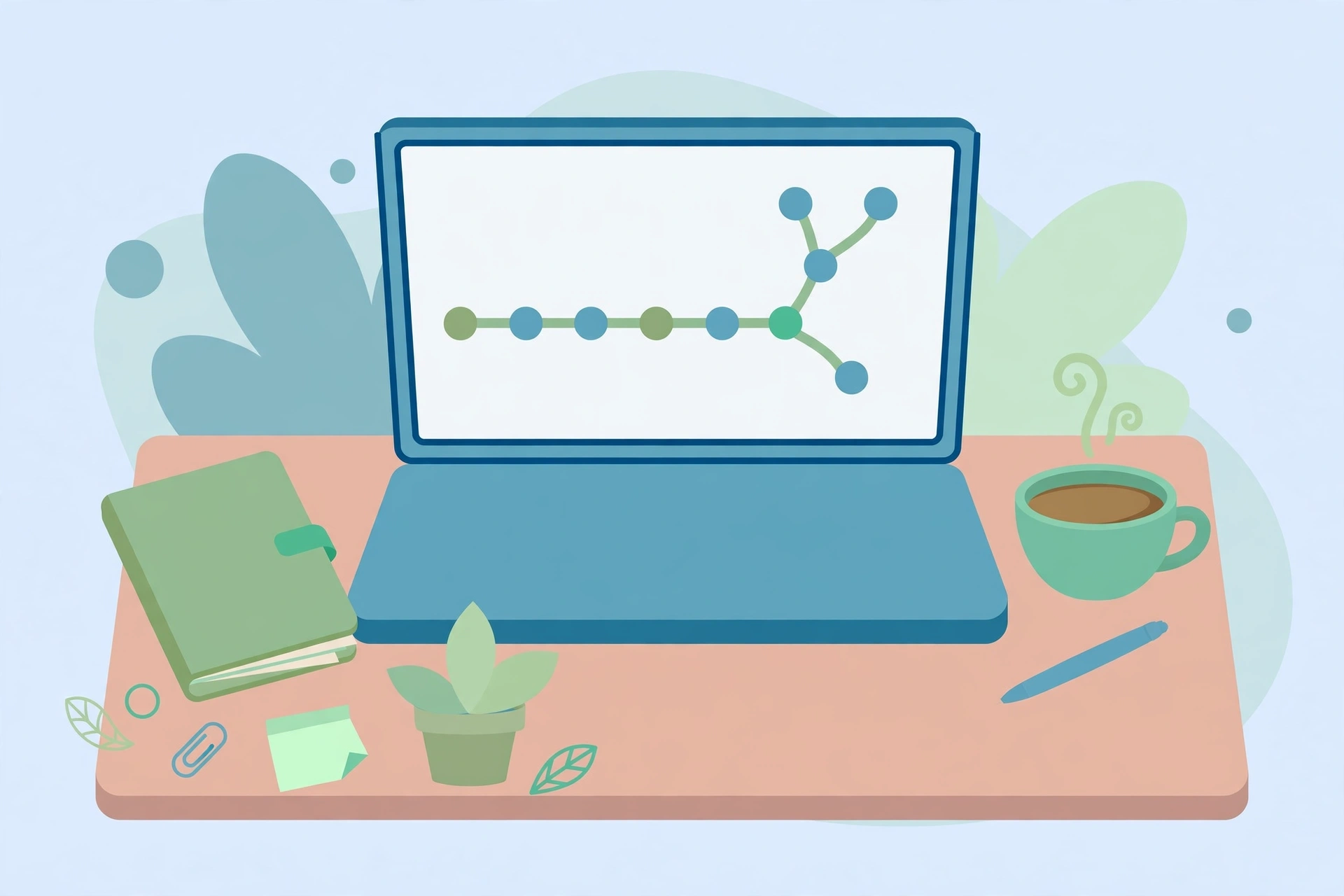
A branch is a separate line of work that splits off from your project. You can experiment on the branch without touching the stable version everyone relies on.
Imagine you want to try a new homepage design. You create a branch, redesign freely, and only merge the branch back into the main version once you are happy with the result.
If the redesign fails, you delete the branch and nothing is lost. Branches are how professional teams test ideas safely, and the same trick protects solo learners too.
Branching starts to matter even more as your projects grow. The APIs in our guide to building REST APIs with Node.js and Express, for example, are much easier to extend when each new feature lives on its own branch first.
Mistakes Beginners Make, and How to Avoid Them
The most common mistake is vague commit messages. Notes like “stuff” or “changes” tell you nothing a month later. Write messages that finish the sentence “This commit will”, such as “This commit will add a contact form”.
The second mistake is committing everything at the end of a long session. When one of those changes breaks something, you cannot tell which one. Commit in small pieces instead.
The third mistake is panic when something looks broken. Almost nothing in Git is truly lost. Before deleting anything, run git status and git log and read what they tell you. Nine times out of ten, the snapshot you need is sitting right there.
Finally, do not store passwords or private keys in a public repository. A simple file called .gitignore tells Git which files to leave out, and setting it up takes two minutes.
Where to Go From Here
You now know what Git does, how GitHub fits in, and the small set of commands that covers daily work. The only step left is practice, and practice works best on a real project rather than toy examples.
Pick something you are already building. Learners following our guide to building mobile apps using the Flutter framework can version their app from day one, and the same habit strengthens the projects in our React and Redux website guide.
For deeper reading, the free Pro Git book on the official Git website is the standard reference, and it is written for readers at every level. Work through the first three chapters and you will know more Git than most people who use it daily.
Version control also sharpens how you think about problems in general. If that side of coding interests you, our article on improving problem-solving skills using programming is a good next read. Start today, commit something small, and let the habit grow with you.